
Guide all'installazione IPTV per ogni dispositivo
Scegli il tuo dispositivo, seleziona un'app e segui i passaggi. Quasi sempre la configurazione richiede meno di tre minuti — e gli stessi dati di accesso StreamHut funzionano su tutti i tuoi dispositivi.
Prima di iniziare: i tuoi dati di accesso StreamHut
Accedi su my.streamhut.tv e apri “Abbonamenti”, oppure controlla l'email di attivazione. Tocca un valore per copiarlo.
Apri le mie credenzialiScegli il tuo dispositivo
Amazon Firestick / Fire TV
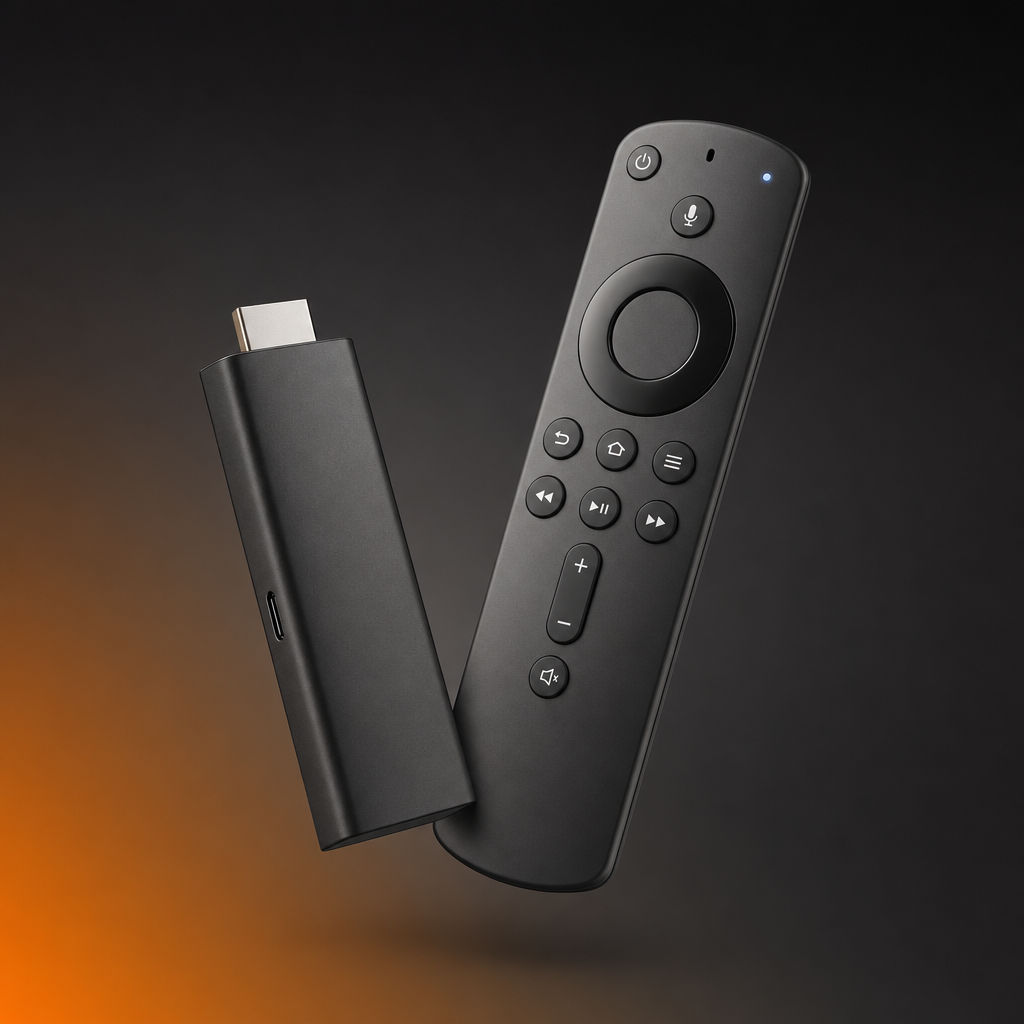
Fire TV Stick, Fire TV Cube e Fire TV — installa un player con l'app Downloader, poi accedi.
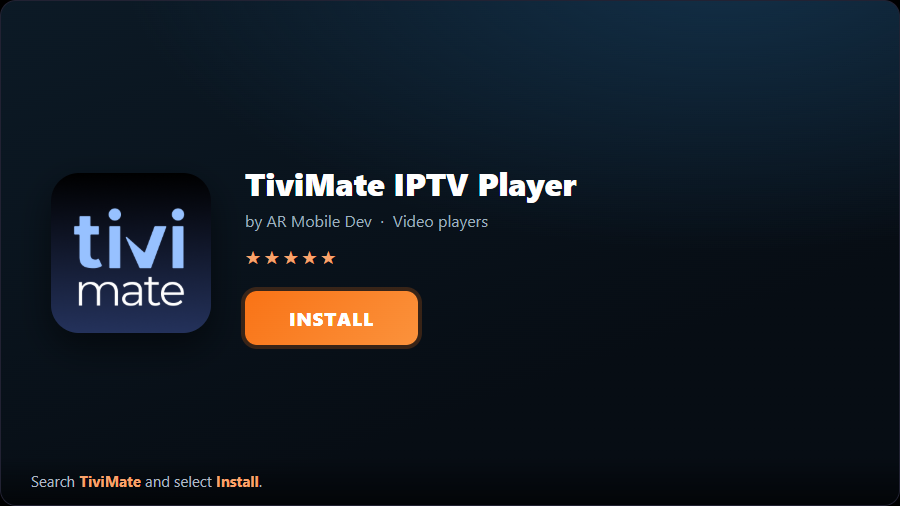
- 1Installa TiviMateApri l'app Downloader, digita nella barra degli indirizzi la pagina ufficiale di download di TiviMate e installa l'APK più recente. (Sui box Android TV / Google TV puoi installare TiviMate direttamente dal Google Play Store.)
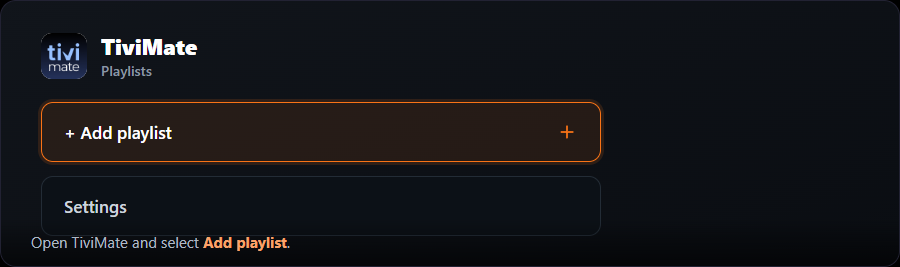
- 2Aggiungi una playlistApri TiviMate e seleziona “Aggiungi playlist”.
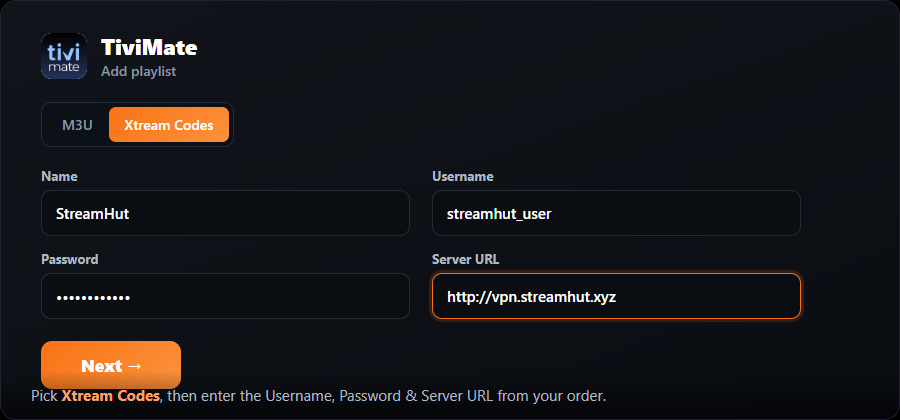
- 3Scegli Xtream CodesSeleziona “Xtream Codes”, assegna un nome alla playlist, ad esempio “StreamHut”, poi inserisci nome utente, password e URL del server che trovi nel tuo ordine StreamHut.
- 4Attendi il caricamentoTiviMate elabora i tuoi canali e la guida TV (EPG) si carica in automatico. Seleziona Avanti / Fine.
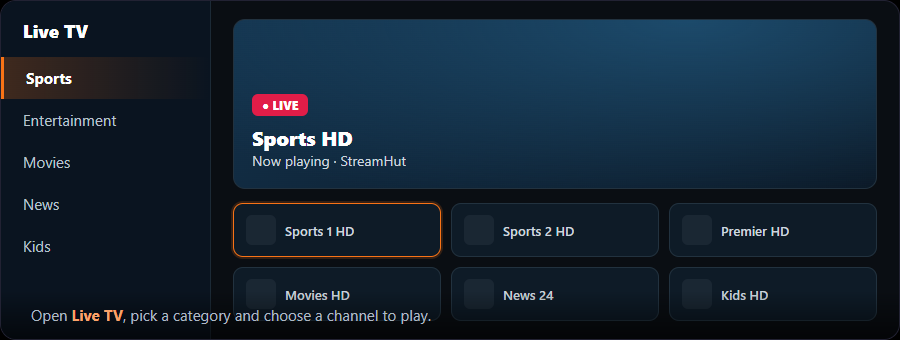
- 5Inizia a guardareApri l'elenco dei canali, scegli una categoria e seleziona un canale da guardare.
La riproduzione con TiviMate è gratuita. Lo sblocco Premium, con pagamento una tantum, aggiunge la registrazione, più playlist e la guida sullo schermo — comodo, ma non indispensabile.
Android e Google TV
Telefoni, tablet, box Android TV e Google TV — la configurazione più rapida di tutte, direttamente dal Play Store.
Smart TV Samsung e LG
Samsung (Tizen) e LG (webOS) — installa direttamente dallo store della TV, senza bisogno di box aggiuntivi.
Apple — iPhone, iPad, Apple TV e Mac
iPhone, iPad, Apple TV e Mac — installa dall'App Store e accedi con le tue credenziali Xtream.
PC Windows
Windows 10 e 11 — da un player completo a una prova veloce con VLC.
Formuler
Box Formuler Z, CC e GTV — usa l'app MYTVOnline integrata o il player che preferisci.
BuzzTV
Box BuzzTV — configurazione tramite portale con il player integrato, oppure qualsiasi app con le credenziali Xtream.
Roku
Chiavette e box Roku e Roku TV — usa IBO Player Pro oppure trasmetti dal telefono.
Domande frequenti
Ogni guida qui sopra indica un'app Consigliata per il tuo dispositivo: TiviMate su Firestick, telefoni Android e box Android TV; IBO Player Pro su Smart TV, dispositivi Apple e Roku; MyIPTV Player su Windows; e la configurazione tramite portale integrato su Formuler e BuzzTV. Inizia da quella — le altre app della scheda sono alternative.
Non hai ancora StreamHut?
Abbonati in un paio di minuti — attivazione immediata, nessun rinnovo automatico — e guarda su qualsiasi dispositivo presente in questa pagina.